Commands
Commands let viewers interact with your stream through chat. Create custom commands with aliases, permissions, cooldowns, and dynamic responses.
Overview
Commands are a special type of trigger that responds to specific chat patterns. While you could create chat triggers manually, the Commands system provides a streamlined interface for common use cases.
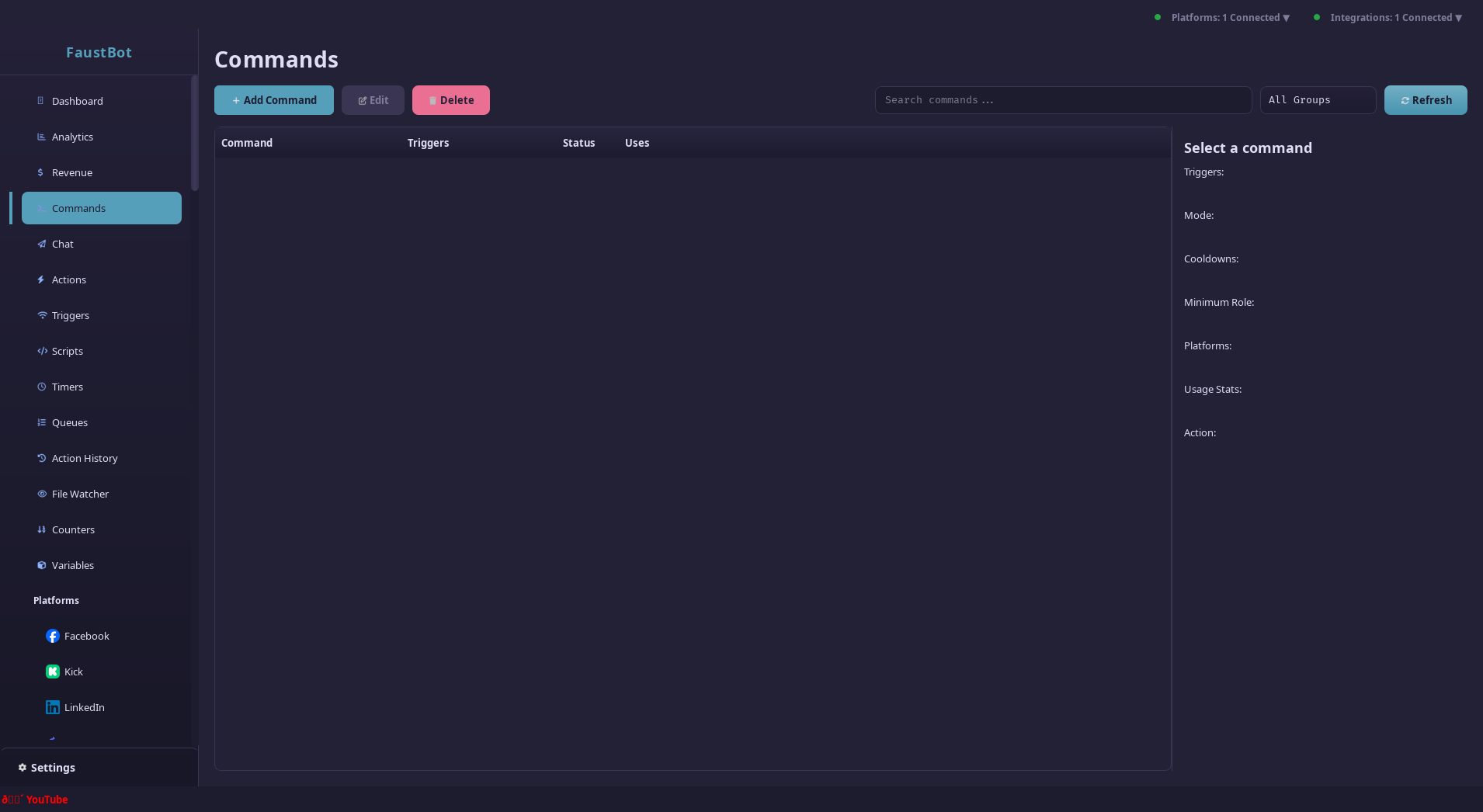
Commands
- Optimized for chat interaction
- Built-in argument parsing
- Multiple aliases support
- Counter tracking
Triggers
- General-purpose events
- Complex condition logic
- Non-chat events
- Advanced filtering
Creating Commands
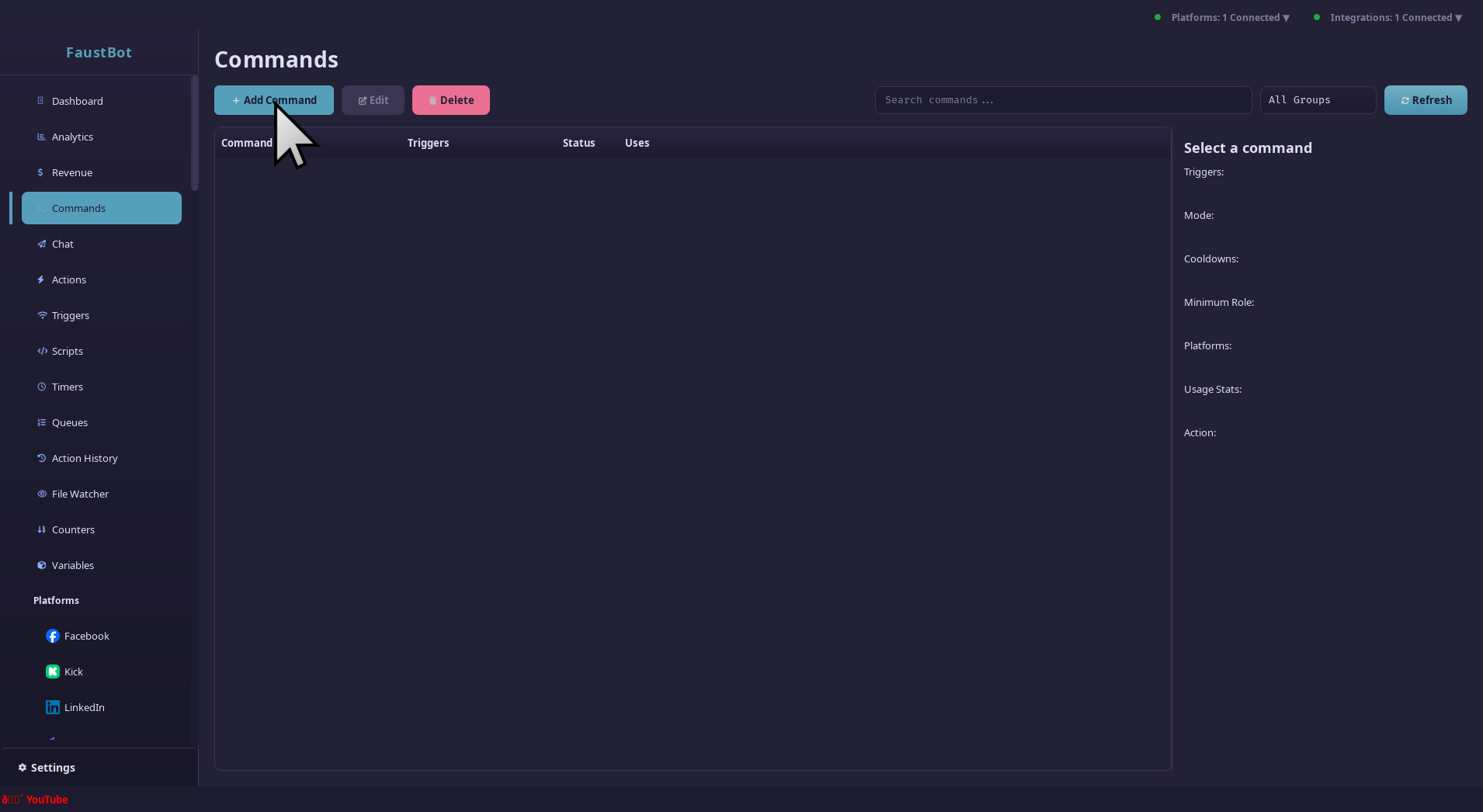
Define Trigger Words
Enter one or more trigger words/phrases. Users can type any of these to activate
the command. Don't include the ! prefix here - that's handled by
the match mode.
help
h
commands
cmdsChoose Match Mode
Select how the command should match chat messages. See Match Modes below.
Link an Action
Select or create an action that runs when the command is triggered. The action receives command context including arguments.
Configure Options
Set permissions, cooldowns, and platform restrictions.
Match Modes
Match modes determine how FaustBot identifies when a command is used.
Starts With (Basic)
Message must start with ! followed by the command word.
Exact Match
Message must exactly equal the command (with ! prefix).
Contains
Command word appears anywhere in the message.
Regex
Full regular expression pattern matching.
Case Sensitivity
By default, commands are case-insensitive (!Help = !help).
Enable Case Sensitive to require exact casing.
Command Arguments
When users include text after the command, it's parsed into arguments you can use in your action.
!give @viewer 100 points%rawInput% → "@viewer 100 points"
%input0% → "@viewer"
%input1% → "100"
%input2% → "points"
%inputCount% → 3
// In scripts
args["rawInput"]
args["input0"]
args["inputCount"]Using Arguments in Actions
Giving %input1% points to %input0%!Argument Tips
- Arguments are split by spaces
- Use quotes for multi-word arguments:
!quote "This is one arg" - Check
%inputCount%before accessing specific arguments %rawInput%contains everything after the command
Permissions
Control who can use each command with role-based permissions.
Cooldowns
Prevent command spam with global and user-specific cooldowns.
Global Cooldown
Time in seconds before anyone can use the command again.
User Cooldown
Time before the same user can use it again.
Counter Tracking
Commands automatically track usage counts accessible in your actions:
%commandCount%       → Total times command was used
%userCommandCount% → Times this user used the commandAction: Send Message
Message: "Death count: %commandCount%"
// Or increment via script
int count = CPH.GetCommandCounter("deaths");
CPH.SetCommandCounter("deaths", count + 1);Common Examples
Simple Response
Follow me! Twitter: @streamer | Discord: discord.gg/xyzUser Lookup
%displayName%, you have %userPoints% points!Moderation Command
string target = args["input0"].ToString();
int duration = int.Parse(args["input1"]?.ToString() ?? "60");
CPH.TwitchTimeoutUser(target, duration, "Mod command");
return true;
Random Response
// Set Variable effect
Variable: response
Value: $randomChoice("Yes!", "No.", "Maybe...", "Ask again later")$

// Send Message effect
Message: "🎱 %response%"